Installation
Flash the firmware
Connect the display by USB to a computer with Chrome or Edge and choose your exact device.
Choose the published release or a local HomeTiles .bin file.
Select the exact model printed on the device or rear label.
Update keeps settings. First install / factory reset erases all local data.
Confirm the exact label before connecting the serial port.
Keep power, USB and this tab open while flashing.
Log capture is active. Selecting a port with Connect and flash stops capture and releases its USB port. Cancelling the port selection keeps capture running.
Install the Bridge
Add the HomeTiles Bridge to Home Assistant with the button, select Download and restart Home Assistant.

Set up the display
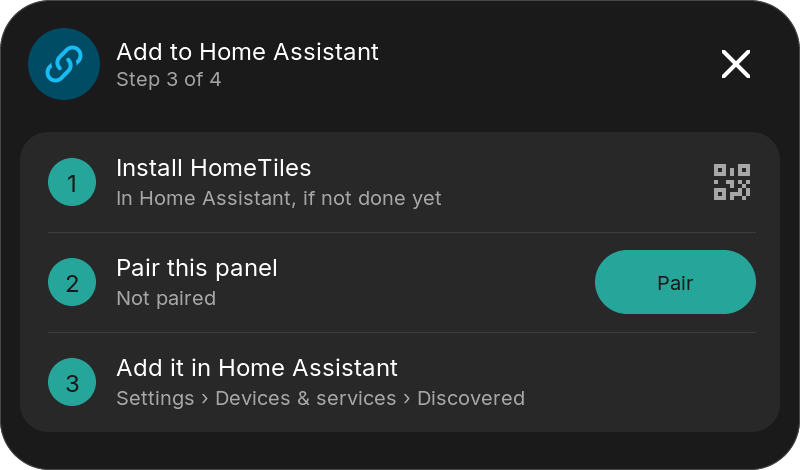
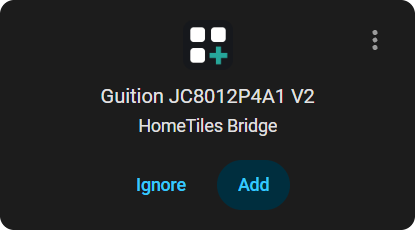
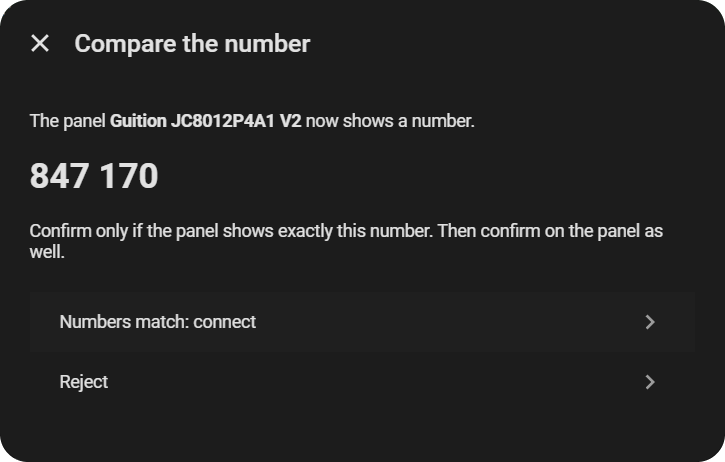
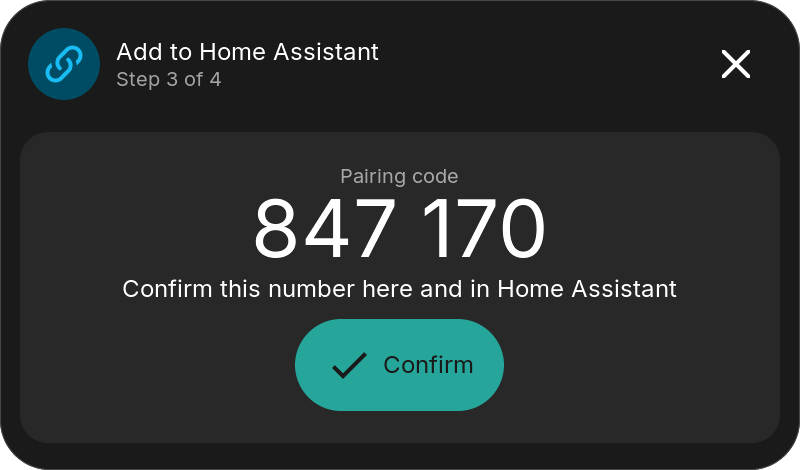
The display guides you. At Pair, select Add in Home Assistant under Settings → Devices & services and confirm the same number on both sides.
Add your tiles
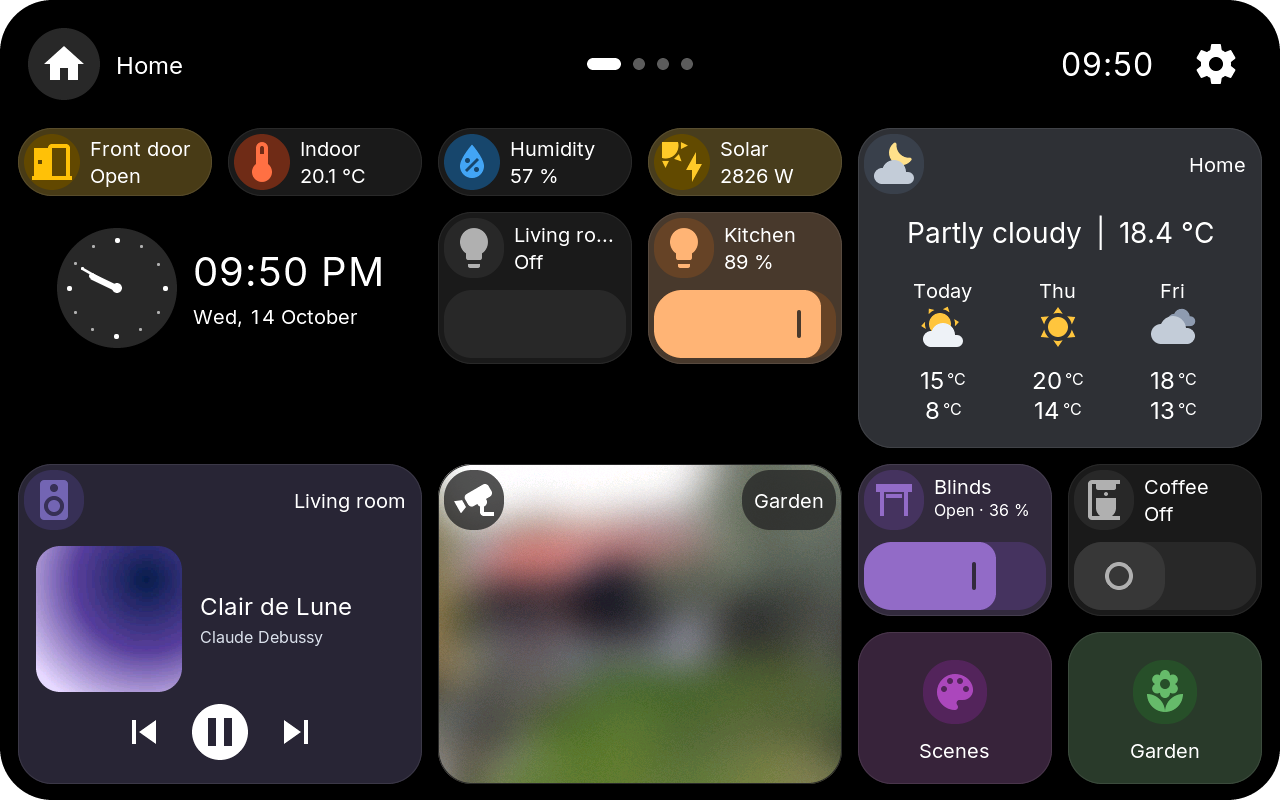
Open the address the display shows in your computer's browser and build your dashboard in the Web Admin.
Manual flashing, no HACS, an MQTT broker or an older display: Advanced setup. Problems: Troubleshooting.